Troubleshooting
- GrindEQ Math ribbon is not available
- Error message: "GrindEQ Math Utilities are not properly installed"
- Error message: "Word experienced an error trying to open the file"
- Error message: "Cannot use Equation Editor 3.x format"
- Error message: "Ghostscript is not installed"
- Empty equations
- Corrupted Microsoft Equations
- No images in Microsoft Word document
- Empty LaTeX document
- No images in LaTeX document
- Antiviruses
GrindEQ Math ribbon is not available
Close Microsoft Word and choose the GrindEQ Options from the Windows Start menu. And then enable (or disable) optional GrindEQ Math ribbon, which will be integrated into Microsoft Word.
If GrindEQ Math ribbon is still not available, the template GrindEQ.dotm is probably blocked by other templates. Try to uncheck some templates in Templates and Add-Ins window accessed via Word Options | Add-Ins | Manage: Templates | Go....
If GrindEQ Math ribbon is still not available, copy the template GrindEQ.dotm, which can be found in the "main" folder on the GrindEQ installation path, to Microsoft Word Startup folder. To locate the current Startup folder select Word Options | Advanced | File Locations.... Close Microsoft Word before copying the template file.
The GrindEQ Math ribbon contains macros. If your antivirus does not allow macros, use standard dialogs:
Save As ... LaTeX [GrindEQ]
Open ... LaTeX [GrindEQ]
Save As ... Microsoft Equation [GrindEQ]
Error message: "GrindEQ Math Utilities are not properly installed"
Download the latest version from GrindEQ website. Close Microsoft Word, run GrindEQ install, and choose Uninstall your previous version option.
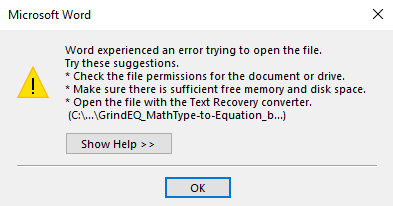
Error message: "Word experienced an error trying to open the file"
Microsoft security system blocks all documents downloaded from Internet. If you try to open such a file, you will get the following warning.
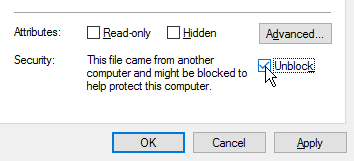
In this case you must unblock your file manually: right-click the Word file, and click Properties, and then check Unblock.
Error message: "Cannot use Equation Editor 3.x format"
The conversion option is probably enabled in your equation editor. Use Microsoft Equation instead of Equation Editor 3.x, or you have to turn off the Convert to MathType option in MathType's Equation Conversion Manager. To run the Equation Conversion Manager, choose it from the MathType sub-menu of the Windows Start menu. A dialog will be displayed with two lists of equation types. Use the Move» button to move Microsoft Equation type from the left list (Convert to MathType) to the right list (Do not convert).
Error message: "Ghostscript is not installed"
Make sure a Ghostscript driver (free under GPL license) is installed on your machine, otherwise EPS/PS image files won't be converted. Please download Ghostscript from grindeq.com or ghostscript.com.
Use Ghostscript driver 64-bit if and only if you have Microsoft Word 64-bit installed on your machine (open Microsoft Word, on the File tab click Account; click on the About Word button for obtaining information about your version of Office).
Empty equations
Equation Editor 3.x is not supported by Microsoft anymore. If you use Equation Editor 3.x, make sure it works properly (just try to create an equation). It is strongly recommended to use Microsoft Equations or MathType instead of Equation Editor 3.x.
Corrupted Microsoft Equations
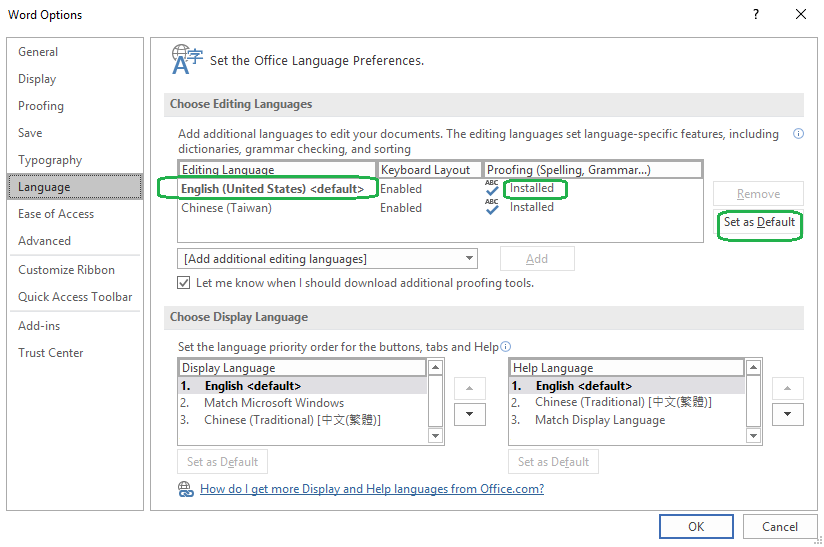
Old versions of Microsoft Word need more time for updating Microsoft Equations. If you use Microsoft Word 2010 (or earlier), setting English as the default language of spelling will dramatically improve updating speed of your document. This does not change checking spelling of your document, so you can enable (or disable) it anytime: open Language tab of Microsoft Word Options, select English from Editing Language list, click Set as Default button, and then click OK. Note, you do not need to change Display Language and Help Language options.
No images in Microsoft Word document
Make sure a Ghostscript driver (free under GPL license) is installed on your machine, otherwise EPS/PS image files won't be converted. Please download Ghostscript from grindeq.com or ghostscript.com. Use Ghostscript driver 64-bit if and only if you have Microsoft Word 64-bit installed on your machine.
Use Ghostscript driver 64-bit if and only if you have Microsoft Word 64-bit installed on your machine (open Microsoft Word, on the File tab click Account; click on the About Word button for obtaining information about your version of Office).
If you open the document from OneDrive or other cloud location, use the \graphicspath command to specify the images folder.
Empty LaTeX document
Change LaTeX encoding (LaTeX-to-Word Options, General page) and/or uncheck Always read LaTeX preamble option.
No images in LaTeX document
If you use PDF for LaTeX output ('pdflatex' program), you should select the PDF mode (Word-to-LaTeX Options, General page) and check PDF copy option (Word-to-LaTeX Options, Images page). Please note, if you use EPS format for images, you have to check Hide file extension option.
If you use non-standard graphical objects in your Microsoft Word document, Word-to-LaTeX may convert them as empty rectangles. Please use freeware GrindEQ Image-to-PostScript utility to convert non-standard graphical objects to EPS format.
If you open the document from OneDrive or other cloud location, check the Redirect to folder option and specify the images folder (Word-to-LaTeX Options, Images page).
Antiviruses
To allow GrindEQ Math Utilities to work properly the execution of GrindEQ should be permitted in the antivirus software settings. Note, optional GrindEQ Math ribbon contains macros. If your antivirus does not allow macros, use standard dialogs:
Save As ... LaTeX [GrindEQ]
Open ... LaTeX [GrindEQ]
Save As ... Microsoft Equation [GrindEQ]
Feedback
If you cannot find a solution for your problem in this help, send an email to our technical support department at support@grindeq.com. Please describe the issue and include the version number or screenshot. To see the version number, click the Info button accessed via GrindEQ Math | Options from Microsoft Word menu or GrindEQ Options from Windows Start menu.
We value your feedback. Please share your reviews, suggestions, or critiques with us at feedback@grindeq.com.