 GrindEQ LaTeX-to-Word
Overview
Our converter translates complex TeX and LaTeX documents to Microsoft Word format. You may select Microsoft Equation, Equation Editor 3.x, or MathType as options for equation conversion.
The module works with Microsoft Word for Windows.
Protect your intellectual property with local-first processing. No data uploads, no cloud leaks – just secure tools that keep your work private and off-limits to third-party AI models.
Key Features
- Compatible with LaTeX, AMS-LaTeX, Plain TeX, and AMS-TeX
- Supports BibTeX bibliographies
- Allows selection between Microsoft Equation, Equation Editor 3.x, or MathType when converting equations
- Offers a choice of LaTeX's cross-referencing algorithm or Microsoft Word's cross-referencing fields
- Supports ANSI, OEM, MAC, Unicode, and UTF-8 encoding for LaTeX files
- Enables high-quality image importing
- Processes entire Microsoft Word documents or selected portions
- Features a multi-language user interface
- Works with both 32-bit and 64-bit versions of Microsoft Word
User Guide
LaTeX-to-Word in 3 Steps
Step 1
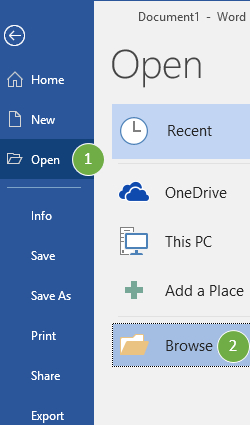
Open your LaTeX document (*.tex) in Microsoft Word:
on the File tab, click Open  and then click Browse
in the type list, click LaTeX [GrindEQ] (*.tex) 
and Open the document.
![Open type: LaTeX [GrindEQ] (*.tex)](/img/l2w/step1b.jpg)
Step 2
Update cross-references if needed:
click  Update button, or select Update command.
Step 3
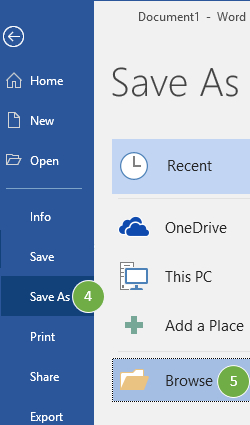
Save the converted document as 'Word Document' using standard Save As menu:
on the File tab, click Save As  and then click Browse
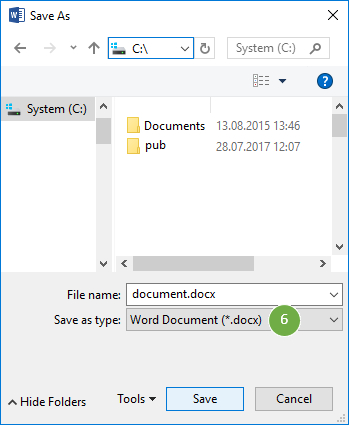
in the Save as type list, click Word Document (*.docx) 
and Save the document.
 GrindEQ Math Ribbon: converting a part of the document / multiple documents
Troubleshooting
GrindEQ Math Ribbon: converting a part of the document / multiple documents
Troubleshooting
- Equation Editor 3.x is not supported by Microsoft anymore. If you have selected Equation Editor 3.x format for importing equations, make sure Equation Editor 3.x is enabled (just try to create an equation), otherwise use Microsoft Equation format.
- If you have selected MathType format for importing equations, you must have MathType installed on your machine. If you have not installed MathType, use Microsoft Equation format.
- If you have MathType installed on your machine, but need to use Equation Editor 3.x, you must turn off the Convert to MathType option in MathType's Equation Conversion Manager. To run the Equation Conversion Manager, choose it from the MathType sub-menu of the Windows Start menu. A dialog will be displayed with two lists of equation types. Use the Move» button to move Microsoft Equation type from the left list (Convert to MathType) to the right list (Do not convert).
- Generally, MathType format allows to perform more precise conversion than Equation Editor 3.x, because MathType uses Euclid fonts. If you use Equation Editor 3.x, it is recommended to install free Euclid fonts; you can download them here.
- Make sure a Ghostscript driver (free under GPL license) is installed on your machine, otherwise EPS/PS image files won't be converted. Click Download Ghostscript in Image options or download it from grindeq.com or ghostscript.com. Use Ghostscript driver 64-bit if and only if you have Microsoft Word 64-bit installed on your machine.
- This is not a complete LaTeX compiler. Some LaTeX features are disabled in this version, because it focuses mainly on conversion of LaTeX equations.
- Conversion of large documents consumes a lot of CPU time and disk space. Thus the system may seem unresponsible while processing such documents. It is recommended to split large LaTeX documents into parts of about 50-60 pages before importing. See also Converting large LaTeX documents.
Raw Mode
Raw Mode connects GrindEQ directly to Word's core without using the interface. Before using it, make sure Word is closed, then open GrindEQ Options from the Windows Start menu. Select File Processing, then open the Raw Mode tab.
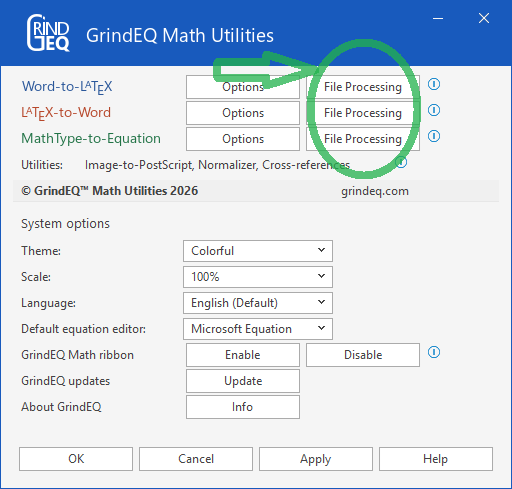
Click Select to choose the document you want to convert, then specify the output file name.
Conversion may take a few minutes depending on the document size. Ensure RTF Files are permitted in Word by going to File > Options > Trust Center > Trust Center Settings > File Block Settings.
Converting Large LaTeX Documents
If you use OLE-based equation editors like MathType or Equation Editor 3.x, it is strongly recommended to split large LaTeX documents into parts of about 50-60 pages before importing (the converted Microsoft Word document shouldn't exceed 5Mb). For this purpose you can insert \begin{comment} ... \end{comment} in your LaTeX document (make sure you have saved the LaTeX document before converting) or open the LaTeX document in Microsoft Word as plain text and convert the selected part.
You can keep cross-references in each part of the split LaTeX document with the following steps.
- Uncheck Resume cross-references (References tab) and Convert image files (Image tab);
- Select XML-based Microsoft Equation format (Equations tab) and convert the whole LaTeX document. Thus, the converter will save cross-reference values, which will be used later;
- Check Add previous part (References tab), select format of equations (Equations tab), and all other necessary options;
- Convert the first part of the LaTeX document. In this case the converter will load the previously saved cross-reference values.
- Click Resume button (Counters tab) and convert the second part of the LaTeX document and so on;
- After converting the whole LaTeX document, uncheck Add previous part (References tab), and click Reset button (Counters tab).
GrindEQ Math Ribbon
By using GrindEQ buttons you can convert a selected part of your document into the necessary format. Select the content you want to convert and click the appropriate GrindEQ button.
Depending on Microsoft Word settings, GrindEQ Math will appear in the Microsoft Word Ribbon.
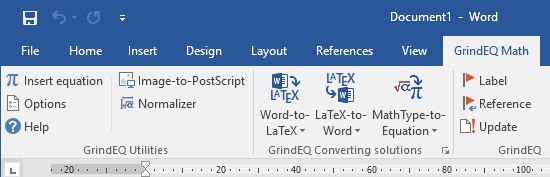
Note, GrindEQ Math ribbon contains macros. If your antivirus does not allow macros, use standard Open ... LaTeX [GrindEQ] dialog.
- To avoid automatic importing from LaTeX, check Confirm file format conversion at open option in Word Options | Advanced | General. Select Plain Text while opening tex-file.
- Always select an equation with its environment. Usually LaTeX equations are enclosed in $...$, \(...\) (inline formulas), or $$...$$, \[...\], \begin{equation}...\end{equation} (displayed equations). They are environments of LaTeX equations.
Converting Multiple Documents
Open the documents you want to convert in Microsoft Word and close all other document. Select GrindEQ converter in GrindEQ menu, then select Convert all opened documents.
LaTeX-to-Word Settings
Options are accessed by pressing and holding Ctrl while launching LaTeX-to-Word, or via GrindEQ Math | Options from Microsoft Word menu, or choose GrindEQ Options from the Windows Start menu.
General
If your tex-file includes non-Latin symbols it is important to choose the right LaTeX encoding. Available options are ANSI (Windows-based LaTeX compilers, like MiKTeX), OEM (old DOS-based compilers, like EMTEX), MAC (MacOS-based LaTeX compilers), Unicode (UTF-16/32, multibyte character set languages, such as Japanese), UTF-8 (variable-length character encoding for Unicode), and other code pages.
Directionality – scripts are graphically characterized by the direction in which they are written: LTR (left-to-right) or RTL (right-to-left).
Always read LaTeX preamble – if you are importing a part of LaTeX document you may lose specific formatting information included in LaTeX preamble. You might need to check this option if the preamble of parted LaTeX document includes important formatting information. If you are importing the whole LaTeX document you may ignore this option. Please note that Plain TeX documents have no preamble, so you should uncheck this option before importing Plain TeX documents!
Quotes – change ``LaTeX quotes'' to “curly” (smart or typographer's) or "straight" quotes.
Page
Measurement units – select the default measurement unit for the Page options.
First line indent – enter the amount of indentation for the first line indent.
Left tab stop for equation number and Right tab stop for equation number – indicate the equation number position for equations with the 'display' style.
Center tab stop for equation – indicate the position (generally centered) for equations with the 'display' style.
Table cell indent – enter the amount of indentation for the first line indent in tables.
First line indent in multi–column – enter the amount of indentation for the first line indent in multi–column document.
Default – restore the default values of the Page options.
Allow multi–column – select this option to keep the original number of columns in a document. Otherwise, the converted text will be formatted as a one-column document.
Font
You can adjust the default font and sizes, which will be used for the converted document in Microsoft Word.
Ignore fontsize – ignore any changes of a font size with the '\fontsize' command. Otherwise, the defined size will be applied to the text in a Microsoft Word document. It is recommended to use the direct size and style definitions, therefore you should check this option in most cases.
Styles
Indicate font sizes (in points), which will be used in LaTeX styles (Title, Part, Chapter, Section, Subsection, and Subsubsection).
The converter can create Microsoft Word Styles (Heading 1, Heading 2, etc.) for each of the indicated LaTeX styles. Select an auto or custom option, and you will be able to correct the parameters of styles with the Styles menu in Microsoft Word after converting. Choose the custom option if you want to customize the correlation between LaTeX sectioning commands and Microsoft Word styles.
Equations
Selecting the target conversion format: Microsoft Equation, Equation Editor 3.x, or MathType. Note, Equation Editor 3.x is not supported by Microsoft anymore. If you need Equation Editor 3.x, make sure it works properly (just try to create an equation). If you have selected MathType format for importing equations, you must have MathType installed on your machine. If you have not installed MathType, use Microsoft Equation format.
If you have MathType installed on your machine, but need to use Equation Editor 3.x, you should turn off the Convert to MathType option in MathType's Equation Conversion Manager. To run the Equation Conversion Manager, choose it from the MathType sub-menu of the Windows Start menu. A dialog will be displayed with two lists of equation types. Use the Move» button to move Microsoft Equation type from the left list (Convert to MathType) to the right list (Do not convert).
A numbered equation in Microsoft Word will be automatically converted to 'Inline' style (this is the feature of Microsoft Word):
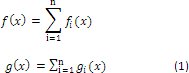
If you want your numbered and unnumbered equations have the same look, check 'Display' equations as 'Inline' equations option:
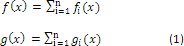
Force Unicode – the converter will use Unicode whenever possible. This is the default behaviour, but uncheck this option if the converted equations do not look correct.
References
LaTeX algorithm – the converter will try to recalculate original LaTeX cross-reference values for equations and bibliography. However, the recalculated values will be inserted as plain text, therefore if you insert an equation in the converted Microsoft Word document, you will need to adjust cross-reference values manually.
Microsoft Word fields – the converter will replace LaTeX cross-references with Microsoft Word cross-references, which will be automatically recalculated. But note, original LaTeX reference values may be different from Microsoft Word ones.
Add previous part – use the previously saved cross-reference values since the last conversion. Check this option if you split a LaTeX document into parts. This will keep the cross-reference values continuous through all converted parts of the split LaTeX document.
Counters
You can adjust counters for equations (only with references in LaTeX algorithm mode), parts, chapters, sections, theorems, and other numbered objects. All values are 0 by default, which means (according to the LaTeX specification), that the first value for each kind of objects will be 1. But if you convert a part of your document (recommended for large LaTeX documents), you might need to adjust the starting values. For example, if you want the first section of your document to have the number 5, put the value 4 as a starting section counter. But if you convert a middle part of the section 5, you have to put the starting section counter 5 for keeping equation numbers like (5.1), (5.2), ...
Use LaTeX notation \setcounter{cnt}{value}, where cnt is the name of a counter (equation, part, chapter, section, subsection, and subsubsection for standard counters, or use your own), value is the starting number (0 by default).
Reset – restore the default values (0) of standard counters.
Resume – use the current values of counters since the last conversion. Use this mode if you want the converter to continue the numbering used in the previous conversion. It is recommended if you split LaTeX document into parts.
Images
Convert image files – check this option if you want the converter to import image files. The converter processes graphical objects in Microsoft Word documents using ImageMagick®.
Make sure a Ghostscript driver (free under GPL license) is installed on your machine, otherwise EPS/PS image files won't be converted. Click Download Ghostscript in Image options or download it from grindeq.com or ghostscript.com. Use Ghostscript driver 64-bit if and only if you have Microsoft Word 64-bit installed on your machine.
Compression method – you can choose a compression method for imported image files.
DPI (dot/in) or dots per inch, is a measure of the resolution of imported image files. The default 72dpi is considered the standard for the web. The industry standard for quality photographs and image is typically 300dpi, but note that this will significantly increase the conversion time (if the system seems unresponsive, wait a few minutes).
Bibliography
Plain BibTeX – a simple version of BibTeX, only standard styles (plain, unsrt, alpha, abbrv) can be converted. Use this option if BibTeX 0.99c produces an incorrect bibliography.
BibTeX 0.99c – a BibTeX emulator. You should also select Codepage and Sort Order (CS): 7/8-bit or CS file (choose one of the standard CS files or select Custom... from the drop-down list).
System
Here you can select the preferable language and skin. See more...
Auto generate new file name – the converter can generate a new file name automatically by changing the extension to '.docx'. If you uncheck this option you will be prompted to type a new file name manually.
Check Show Options at startup if you want LaTeX-to-Word Options to be displayed every time you start LaTeX-to-Word. Also you can access LaTeX-to-Word Options by pressing and holding Ctrl while lunching LaTeX-to-Word conversion.
You can turn the statistics window on/off with Show statistics after converting checkbox.