 GrindEQ MathType-to-Equation
Overview 
This utility enables smart conversion of MathType / Wiris and Equation Editor 3.x objects into Microsoft Equation format. It allows you to seamlessly update legacy documents and edit any MathType object using the standard Microsoft Equation Editor.
The module works with Microsoft Word for Windows.
Local. Private. AI-Proof. We process everything on your computer so your sensitive data never touches the internet.
Key Features
- Converts MathType objects to Microsoft Equation or Equation Editor 3.x formats in Microsoft Word documents
- Transforms Equation Editor 3.x objects into Microsoft Equation format
- Enables Euclid fonts for enhanced compatibility
- Processes entire Microsoft Word documents or selected portions
- Features a multi-language user interface
- Works with both 32-bit and 64-bit versions of Microsoft Word
User Guide
MathType-to-Equation in 3 Steps
Step 1
Open your document (*.docx, *.doc, *.rtf, etc.) in Microsoft Word.
Step 2
Save your document as 'Microsoft Equation - RTF [GrindEQ]' using standard Save As menu:
on the File tab, click Save As  and then click Browse
in the Save as type list, click Microsoft Equation - RTF [GrindEQ] (*.rtf) 
and Save the document.
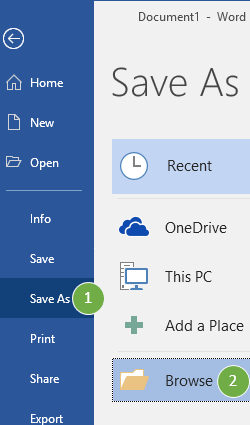
![Save as type: Microsoft Equation - RTF [GrindEQ] (*.rtf)](/img/m2e/step2b.jpg)
Step 3
Re-open your document:
close Microsoft Word, and then reopen your document;
or click  Reopen document button.
 GrindEQ Math Ribbon: converting a part of the document / multiple documents
Troubleshooting
GrindEQ Math Ribbon: converting a part of the document / multiple documents
Troubleshooting
- Equation Editor 3.x is not supported by Microsoft anymore. If you have selected Equation Editor 3.x format for importing equations, make sure Equation Editor 3.x is enabled (just try to create an equation), otherwise use Microsoft Equation format.
- If you have MathType installed on your machine, but need to use Equation Editor 3.x, you must turn off the Convert to MathType option in MathType's Equation Conversion Manager. To run the Equation Conversion Manager, choose it from the MathType sub-menu of the Windows Start menu. A dialog will be displayed with two lists of equation types. Use the Move» button to move Microsoft Equation type from the left list (Convert to MathType) to the right list (Do not convert).
- The new file will be created in RTF format; you can convert it to 'Word Document' (*.docx) using standard Save As menu.
- Some of the specific MathType features will be emulated (e.g., an arc over symbols), so the converted equations may look slightly different.
- MathType users can insert additional symbols, including specific mathematical symbols from Euclid fonts. If you use specific fonts in MathType, you must have those fonts installed on your machine. Otherwise, absent fonts will be substituted by system fonts. You can download the Euclid fonts here.
Raw Mode
Raw Mode connects GrindEQ directly to Word's core without using the interface. Before using it, make sure Word is closed, then open GrindEQ Options from the Windows Start menu. Select File Processing, then open the Raw Mode tab.
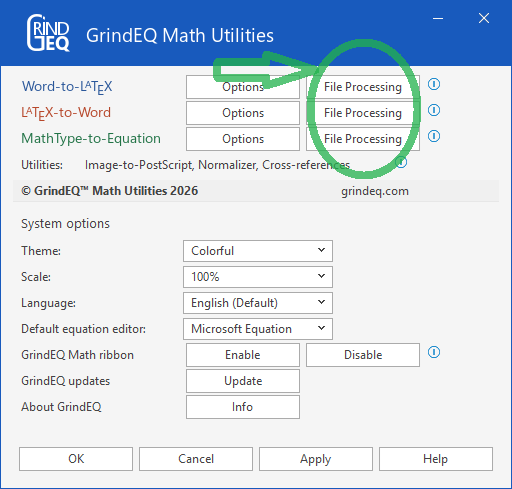
Click Select to choose the document you want to convert, then specify the output file name.
Conversion may take a few minutes depending on the document size. Ensure RTF Files are permitted in Word by going to File > Options > Trust Center > Trust Center Settings > File Block Settings.
GrindEQ Math Ribbon
By using GrindEQ buttons you can convert a selected part of your document into the necessary format. Select the content you want to convert and click the appropriate GrindEQ button.
Depending on Microsoft Word settings, GrindEQ Math will appear in the Microsoft Word Ribbon.
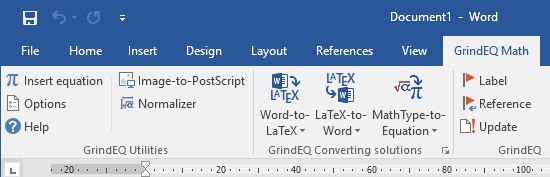
Note, GrindEQ Math ribbon contains macros. If your antivirus does not allow macros, use standard Save As ... Microsoft Equation [GrindEQ] dialog.
Converting Multiple Documents
Open the documents you want to convert in Microsoft Word, and close all other documents. Select GrindEQ converter in GrindEQ Math ribbon, and then select Convert all opened documents.
MathType-to-Equation Settings
Options are accessed by pressing and holding Ctrl while launching MathType-to-Equation, or via GrindEQ Math | Options from Microsoft Word menu, or choose GrindEQ Options from the Windows Start menu.
Equations
Equation format – select the target conversion format: Microsoft Equation or Equation Editor 3.x. Note, Equation Editor 3.x is not supported by Microsoft anymore. If you need Equation Editor 3.x, make sure it works properly (just try to create an equation), otherwise use Microsoft Equation format.
If you have MathType installed on your machine, but need to use Equation Editor 3.x, you must turn off the Convert to MathType option in MathType's Equation Conversion Manager. To run the Equation Conversion Manager, choose it from the MathType sub-menu of the Windows Start menu. A dialog will be displayed with two lists of equation types. Use the Move» button to move Microsoft Equation type from the left list (Convert to MathType) to the right list (Do not convert).
Force Unicode – the converter will use Unicode whenever possible. This is the default behaviour, but uncheck this option if the converted equations do not look correct.
Restore broken equations – sometimes equations are saved incorrectly (you can see them, but cannot open them for editing), and the converter only extracts the images. It is recommended to use MathType recovery tools before converting broken equations, or try to recover them using the built-in heuristic algorithm. Note, you should use this options for broken equations only, but we recommend to uncheck it in other cases.
Allow MathType font – check this option if you want to keep MathType Euclid fonts in the converted equations. In this case you will need to install Euclid fonts on your machine.
MathType uses Euclid fonts while Microsoft Equation uses Cambria Math. Euclid fonts are free; you can download them here. Keeping Euclid fonts in the converted equations guarantees the equivalent look of symbols, but you will need to install these fonts on your machine. Otherwise, Euclid fonts will be replaced with ordinary ones, that guarantees compatibility, but the converted equations may look slightly different.
In most cases, after conversion Microsoft Equation look is equivalent to MathType one. But if you use specific MathType symbols, Allow MathType font option can dramatically affect the look of converted equation. See the following examples.
MathType without Euclid font
Before:
MathType
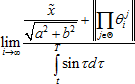
After:
Equation Editor 3.x
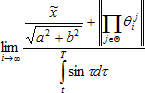
MathType with Euclid font
Before:
MathType

After:
Equation Editor 3.x
Allow MathType font is checked and Euclid fonts are installed.

After:
Equation Editor 3.x
Allow MathType font is NOT checked. Euclid symbols are replaced with ordinary symbols, but some of them look different.

After:
Equation Editor 3.x
Allow MathType font is checked, but Euclid fonts are NOT installed. Euclid symbols are kept, but not displayed, because Euclid fonts are not installed.

System
Here you can select the preferable language and skin. See more....
Check Show Options at startup if you want MathType-to-Equation Options to be displayed every time you start MathType-to-Equation. Also you can access MathType-to-Equation Options by pressing and holding Ctrl while lunching MathType-to-Equation conversion.
You can turn the statistics window on/off with Show statistics after converting checkbox.