 GrindEQ Word-to-LaTeX
Overview 
This module converts Microsoft Word documents to TeX and LaTeX formats. Microsoft Equation, Equation Editor 3.x, and MathType are supported. Includes an optional MathJax compatibility mode.
The module works with Microsoft Word for Windows.
Your data stays where it belongs – with you. Our software runs 100% locally, ensuring your private information never touches the cloud or feeds third-party AI models.
Key Features
- Compatible with LaTeX, AMS-LaTeX, Plain TeX, and AMS-TeX
- Exports equations (Microsoft Equation, Equation Editor 3.x, and MathType) in editable form
- Provides an optional MathJax compatibility mode
- Enables high-quality image exporting
- Exports tables, lists, headers, footers, cross-references, etc.
- Supports ANSI, OEM, MAC, Unicode, and UTF-8 encoding for LaTeX files
- Processes entire Microsoft Word documents or selected portions
- Features a multi-language user interface
- Works with both 32-bit and 64-bit versions of Microsoft Word
User Guide
Word-to-LaTeX in 4 Steps
Step 1
Open your document (*.docx, *.doc, *.rtf, etc.) in Microsoft Word.
Step 2
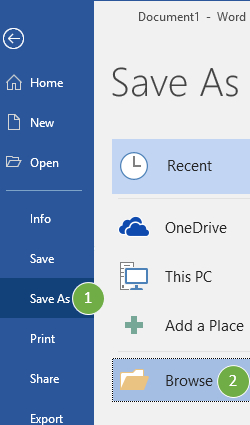
Save your document as 'LaTeX [GrindEQ]' using standard Save As menu:
on the File tab, click Save As  and then click Browse
in the Save as type list, click LaTeX [GrindEQ] (*.tex) 
and Save the document.
![Save as type: LaTeX [GrindEQ] (*.tex)](/img/w2l/step2b.jpg)
Step 3
Close Microsoft Word.
Step 4
Open the converted LaTeX document in your favorite editor.
 GrindEQ Math Ribbon: converting a part of the document / multiple documents
Troubleshooting
- By default, Microsoft Equation and MathType are exported in editable form as LaTeX math expressions. It is also a possibility to obtain an image from equations (for example, in web publication).
- You can choose to convert any elements you want: equations, images, tables, paragraph/symbol formats, etc.
- Convert manual cross-referencing in your Word document to GrindEQ automatic cross-referencing. This will improve the quality of your Word document and the converted LaTeX document as well.
- LaTeX with AMS symbols is used by default, because this is the most usable format for now. However, you can choose Plain TeX as well.
- ANSI encoding for LaTeX document is used by default, but you can choose UTF-8, Unicode (UTF-16LE or UTF-16BE), or other encoding.
Raw Mode
Raw Mode connects GrindEQ directly to Word's core without using the interface. Before using it, make sure Word is closed, then open GrindEQ Options from the Windows Start menu. Select File Processing, then open the Raw Mode tab.
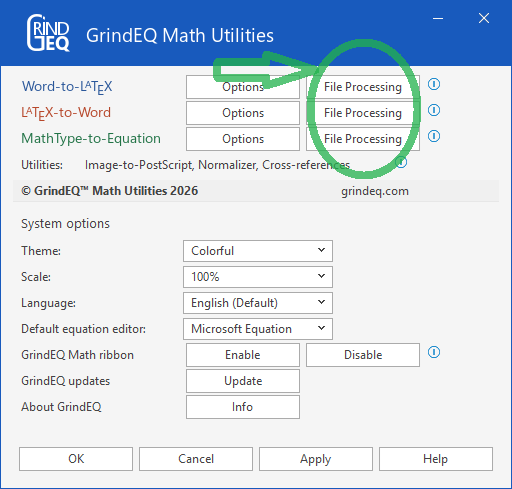
Click Select to choose the document you want to convert, then specify the output file name.
Conversion may take a few minutes depending on the document size. Ensure RTF Files are permitted in Word by going to File > Options > Trust Center > Trust Center Settings > File Block Settings.
GrindEQ Math Ribbon
By using GrindEQ buttons you can convert a selected part of your document into the necessary format. Select the content you want to convert and click the appropriate GrindEQ button.
Depending on Microsoft Word settings, GrindEQ Math will appear in the Microsoft Word Ribbon.
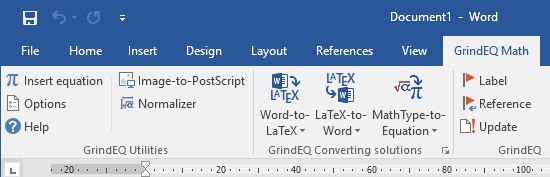
Note, GrindEQ Math ribbon contains macros. If your antivirus does not allow macros, use standard Save As ... LaTeX [GrindEQ] dialog.
Converting Multiple Documents
Open the documents you want to convert in Microsoft Word and close all other documents. Select GrindEQ converter in GrindEQ menu, then select Convert all opened documents.
Word-to-LaTeX Settings
Options are accessed by pressing and holding Ctrl while launching Word-to-LaTeX, or via GrindEQ Math | Options from Microsoft Word menu, or choose GrindEQ Options from the Windows Start menu.
General
If your document includes non-Latin symbols it is important to choose the right Encoding. Available options are ANSI (for Windows-based LaTeX compilers, like MiKTeX), OEM (for old DOS-based compilers, like EMTEX), MAC (if you plan to compile your document under Mac OS), Unicode (UTF-16/32, for multibyte character set languages, such as Japanese), UTF-8 (variable-length character encoding for Unicode), and other code pages.
TeX version – LaTeX format is used by default because this is the most usable format for now. However, you can choose Plain TeX format as well.
Mode – select PDF or DVI mode: PDF (Portable Document Format) is the de facto standard format for electronic documents, but DVI (DeVice Independent) is also used in the TeX world. Otherwise, select Custom, and then you will be able to adjust the graphicx package in the Preamble tab.
Latin accents – if your document includes Latin letters with accents (ö, é, etc.) you can convert them to corresponding LaTeX expressions (\"{o}, \'{e}, etc.). However, if accents are supported by your LaTeX compiler you should select Keep as is option.
Greek letters – if you are using Greek as the default encoding, you should select Keep as is option. Otherwise, select TeX expression option, and Greek letters will be converted to corresponding LaTeX expressions (\alpha, \beta, etc.)
Unknown symbols – non-LaTeX characters - in equations could be converted as text, because this is common practice to add a text comment after an equation. Otherwise, unknown symbols can be ignored, or replaced by '?', or by LaTeX command \chr{#}, where # is Unicode (in this case you will be required to define \chr{} manually).
Article or Book
Choose the class of a LaTeX document: Article or Book. The main difference between Article and Book is document sectioning. Book supposes the following structure: Chapter, Section, Subsection, Subsubsection, Paragraph, Subparagraph, and optional Part. However, Article includes only Section, Subsection, Subsubsection, Paragraph, and Subparagraph. By default Microsoft Word styles (Heading 1, Heading 2, etc.) will be converted to the corresponding LaTeX sectioning commands. You can customize the correlation between Microsoft Word styles and LaTeX sectioning commands.
Preamble
Adding LaTeX preamble (specific for the selected LaTeX version) to the converted text. You can use the default LaTeX preamble or the modified one.
Formatting
Converting paragraph format, symbol format, headers/footers and lists. Only selected types of text formatting will be processed, all other types will be ignored and default TeX styles will be applied.
Simplified footnotes – check this option if you only use simple footnotes and text sub- and superscripts. However, uncheck this option to convert equations in footnotes.
Ignore empty lines – TeX ignores empty lines, so you probably do not need this option; but too many empty lines can make it difficult to edit the document.
Equations
Converting Microsoft Equation, Equation Editor 3.x, and MathType to TeX format (corresponding to the selected TeX version).
Integral and Sum – overriding limits placing for integral and sum signs. TeX notation supposes specific limits placing rules for integral and sum signs (e.g.  for inline formulas, and
  for displayed equations). The converter can adapt your equations automatically (TeX style) or emulate the original MathType (or Microsoft Equation) look (MathType style).
Area/Volume integrals as Contour integrals – TeX notation supposes a single  symbol for Contour, Area and Volume integrals. But MathType (or Microsoft Equation) offers also
  for Area, and
  for Volume integrals. The converter can replace Area and Volume integrals with Contour integrals automatically or emulate the original MathType (or Microsoft Equation) look.
Reset nudging – ignoring all nudging. Nudging was specially designed to construct new symbols in MathType (or Equation Editor 3.x), but TeX has much more powerful tools for this purpose. The converter can remove all nudging automatically (you will need to modify equations that use nudging manually) or emulate the original MathType (or Equation Editor 3.x) look.
It is strongly recommended to avoid the emulation of the original MathType (or Equation Editor 3.x) look. This will guarantee that the converter creates fully compatible TeX documents.
Recognize Functions – the names of certain standard functions and abbreviations can be obtained by typing a backlash \ before the name. The following standard functions are defined in LaTeX: \cos, \csc, \exp, \ker, \limsup, \min, \sinh, \arcsin, \cosh, \deg, \gcd, \lg, \ln, \Pr, \sup, \arctan, \cot, \det, \hom, \lim, \log, \sec, \tan, \arg, \coth, \dim, \liminf, \max, \sin, \tanh.
Restore broken equations – sometimes equations are saved incorrectly (you can see them, but cannot open them for editing), and the converter only extracts the images. It is recommended to use MathType recovery tools before converting broken equations, or try to recover them using the built-in heuristic algorithm. Note, you should use this options for broken equations only, but we recommend to uncheck it in other cases.
Extract images from broken equations – try to extract an image from the broken Equation Editor 3.x or MathType objects if the standard conversion fails. If you want to use this mode, you should allow Image conversion (check Images option).
If you uncheck Equations option and check Images, all Equations Editor 3.x and MathType objects will be converted as images.
MathJax compatibility – LaTeX equations can be used in MathJax with some restrictions that will be automatically applied using this compatibility option. Since MathJax only supports TeX in math mode, you should copy converted equations to your project, but avoid TeX notation in text mode. Note that MathJax compatibility option is experimental, please send any comments and improvement suggestions to mathjax@grindeq.com
Double backslashes – if MathJax is used in content-management systems that have their own document processing commands, you may have to double the backslashes in order to obtain a single backslash in your HTML page.
Escape underscores – in formats like Markdown, the underscore is used to indicate italics, and this usage will conflict with MathJax's use of the underscore to indicate a subscript. This option uses the backslash as a special character for escaping underscore.
References
If you want to convert GrindEQ/MathType references fields only, check fields only. You can obtain LaTeX cross-references ('\label{x}' and '\ref{x}') even if Microsoft Word document contains manual references such as (1), (1.1), etc. Check convert numeric: (1.1) or convert alphanumeric: (1.a) depending on which one you are using in your document (in this case GrindEQ/MathType reference fields will also be converted). Please be careful when converting manual references to avoid unexpected results.
- The displayed reference values may change after the compilation to LaTeX.
- Convert manual cross-referencing in your Word document to GrindEQ automatic cross-referencing. This will improve the quality of your Word document and the converted LaTeX document as well.
You can disable conversion of references. In this case their values will be exported as plain text.
Tables
Unfortunately Microsoft Word table standard differs cardinally from TeX table standard, hence it is impossible to convert tables unambiguously. But you can fine tune resulting TeX table appearance using these options.
Cell ratio – scaling TeX table size. Microsoft Word tables are often larger than TeX tables. You can adjust TeX table size by specifying the scaling ratio. If you have more than one string in at least one cell, do not choose auto option.
Check Table borders option if you want the converted tables to have borders.
Images
The standard way to add an image to TeX document is to supply a separate image file. The converter processes graphical objects in Microsoft Word documents using ImageMagick®.
Extraction method – selecting either the quality method (for most image formats), or compatibility (if the quality method fails).
Format – selecting either PNG (lossless), JPEG (lossy), EPS (Encapsulated PostScript), or PS (PostScript) file format.
PDF copy – if you use PDF for LaTeX output ('pdflatex' program), you should check this option and select the PDF mode (the General tab); it is also recommended to check Hide file extension option.
Uncheck this option if your LaTeX compiler can convert images to PDF format automatically (you will probably be required to include epstopdf package: \usepackage{epstopdf})
You can also convert your LaTeX source file to a DVI file, then convert DVI to PDF with 'dvipdfm' program. In this case you have to use EPS file format for images.
Calculate the bounding box – inserting the bb parameter to \includegraphics. Note that this option should be unchecked if you select PDF mode or EPS images.
Start # (image#.eps) – setting the initial number of the counter used in the file name mask (default is 1). The converter creates image files with the following file name mask: 'image#.eps' (defaults are 'image1.eps', 'image2.eps', ...).
Replace existing image files – specifying the converter reaction when the image file already exists (replaces the existing file or generates a new file name).
Redirect to folder – changing the folder for the converted images. Use this option if you open the document from OneDrive or other cloud location.
If you use non-standard graphical objects in your Microsoft Word document, Word-to-LaTeX may convert them as empty rectangles. Please use the compatibility extraction method or freeware GrindEQ Image-to-PostScript utility to convert non-standard graphical objects to EPS format.
System
Here you can select the preferable language and skin. See more...
Auto generate new file name – the converter can generate a new file name automatically by changing the extension to '.tex'. If you uncheck this option you will be prompted to type a new file name manually. Please note, some TeX compilers do not accept file names with white spaces.
Word wrap – almost all modern TeX editors support automatic word wrapping, therefore you rather do not need to use this option. However, if you use a simple text editor (like Microsoft Notepad), checking this option will simplify editing the converted documents.
Check Show Options at startup if you want Word-to-LaTeX Options to be displayed every time you start Word-to-LaTeX. Also you can access Word-to-LaTeX Options by pressing and holding Ctrl while lunching Word-to-LaTeX conversion.
You can turn the statistics window on/off with Show statistics after converting checkbox.